
Add overlay widgets
Work the widget gallery, share style settings across widgets, and run several copies of the same widget in OBS.
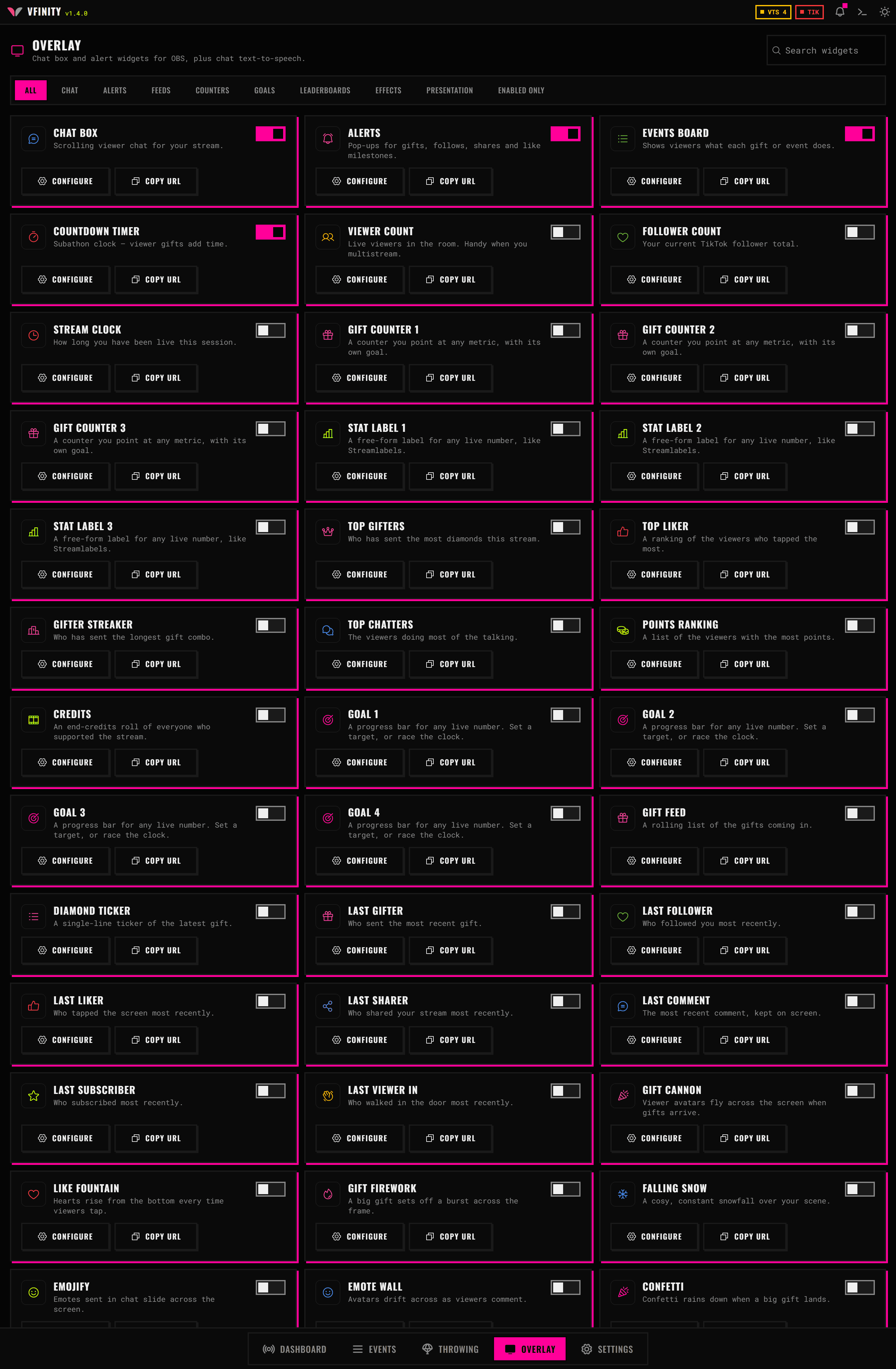
The Overlay tab is a gallery of widgets, each of which becomes its own OBS browser source. Turning one on starts serving it; turning it off serves an empty page.
New to this? Start with Add your first overlay widget.
Finding a widget
The gallery groups widgets into nine categories: chat, alerts, feeds, counters, goals, leaderboards, effects, presentation and interaction.
The search box also matches the names other tools use. If you came from TikFinity, StreamElements or Streamlabs, search for what you called it there:
| You know it as | Search finds |
|---|---|
kappagen | Emote Wall |
streamlabels | Stat Label |
the jar | Coin Jar |
tip goal, sub goal, bit goal | Goal |
event list, donation ticker | Gift Feed |
One Goal widget covers what other tools ship as separate tip, follower, sub, bit and superchat goals. You pick the metric.
Settings every widget shares
Open a card's settings and you get the same four groups no matter which widget it is:
- Placement: where it sits and how big it is
- Typography: font, size, weight and colour. The font picker lists your system fonts, filtered by the scripts each one covers
- Frame: the border or backdrop drawn around it
- Animation: entry and exit, with their timings synced
Changes apply live. Leave OBS open beside Vfinity while you tune.
Running more than one
Several widget families take an id so you can run copies with different settings:
- Goals 1 to 4
- Gift counters 1 to 3, stat labels 1 to 3
- The leaderboards, feeds, effects, media and frame families
Each copy has its own card in the gallery and its own URL. Copy the URL from the card rather than editing the id by hand.
Getting the URL right
Copy it from the card. The URLs carry query parameters, and hand-editing them is how you end up with #overlay-goal?id=1?lang=en, which parses the id as 1?lang=en and shows an empty widget.
Full route list: Overlay URLs.
In OBS
For every widget source:
- Set the width and height to the space the widget should occupy, not your whole canvas.
- Clear Shutdown source when not visible. Otherwise the widget reloads on every scene change and loses whatever it had accumulated.
- Put it above your VTube Studio capture if it should draw in front of the model.
Images and video
Widgets that show an image or a video read files you upload in Vfinity, and the overlay server hands them to OBS. You do not need to host anything.
The stats behind the widgets
Counters, goals, leaderboards and the coin jar all read one shared set of totals: per viewer counts, session and all-time numbers, who did what last, and the longest gift combo. Vfinity broadcasts a compact view of it to OBS once a second.
All-time records and point balances survive a restart. Session numbers reset when a new stream connects.