
Throw your first gift
Draw a hitbox on your model, add the throwing overlay to OBS, and land a test throw.
Throwing is its own system. It does not use event mappings, and nothing you set up on the Events tab affects it. Gifts become physical objects that fly in from the side of the screen, hit your model, and fall.
Two things have to be true before a throw is visible to viewers: a hitbox has to exist on your model, and OBS has to be showing the throwing browser source. The in-app preview shows throws without OBS, but your stream will not.
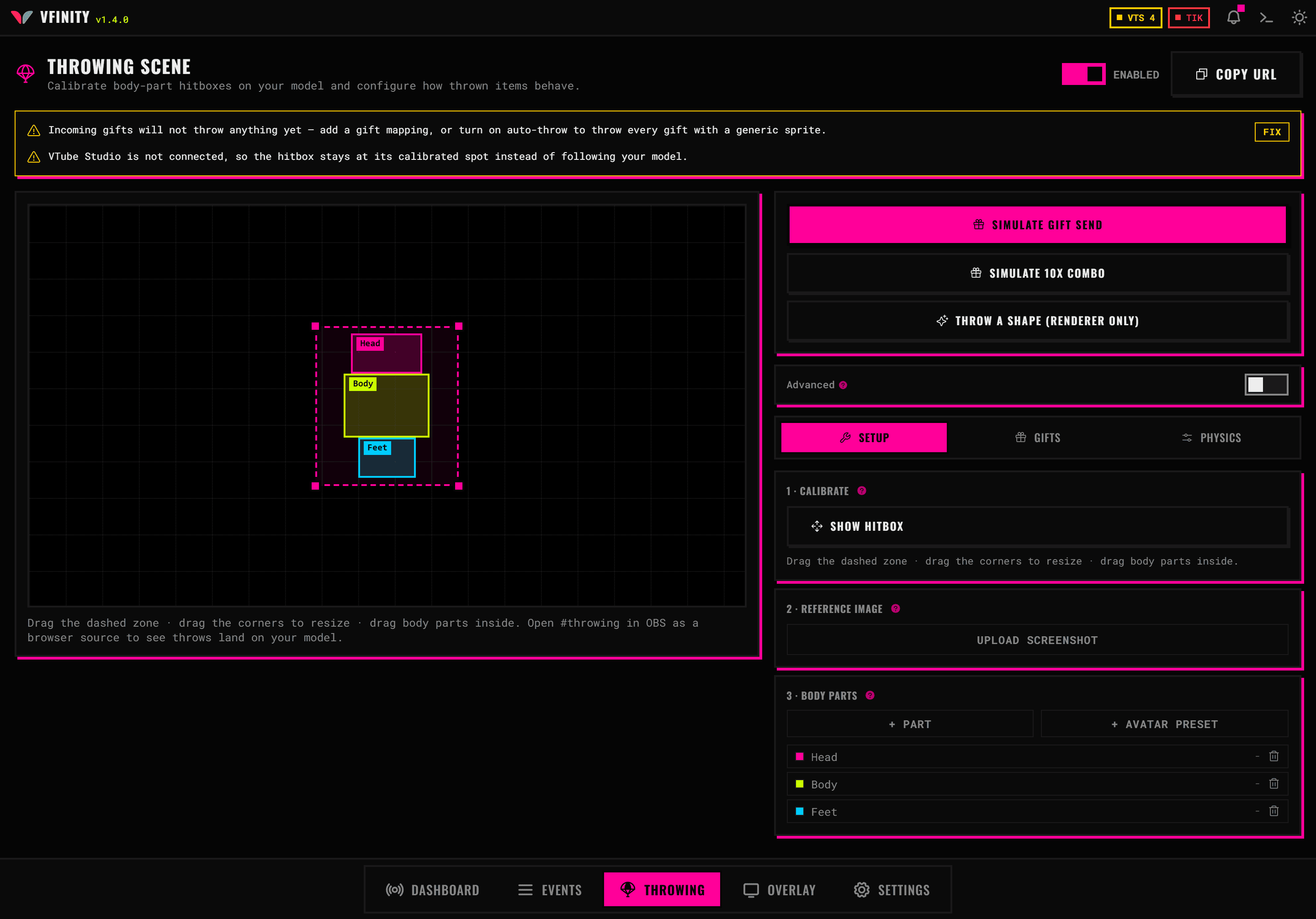
Open the Throwing tab and turn the scene on
Click Throwing in the bottom bar. Switch Enabled on at the top right.
A scene that is off is the first thing the diagnostics panel complains about, and it is off on a fresh install.
Give it a reference image
Under Reference image, upload a screenshot of your model as it appears in OBS.
This image is only ever used here, to line the hitboxes up. It is never shown on stream.
Add body parts
Under Body parts, click Add avatar preset to get a head, body and feet in one go, or Add part to draw them one at a time.
Drag each box over the matching part of your model in the preview. Drag a corner to resize.
Add the overlay to OBS
Copy the throwing URL from the Dashboard, on the Throw Item Overlay card. It looks like http://127.0.0.1:21424/#throwing.
In OBS:
- Add a Browser source.
- Paste the URL.
- Set the size to your canvas size, usually 1920 by 1080.
- Clear Shutdown source when not visible.
- Drag the source above your VTube Studio capture in the scene list, so thrown items land in front of the model.
Throw something
Back in Vfinity, click Test Throw.
An item flies in and hits the model. It shows in the in-app preview and in OBS at the same time.
If you only want to check OBS, turn on Send test throws to the OBS overlay only and the in-app preview stays empty.
Make real gifts throw
You have two ways to decide which gifts throw:
- Auto-throw gifts from TikTok LIVE, on the Setup tab, throws every gift that arrives, using a generic sprite.
- Gift mappings, on the Gifts tab, throw only the gifts you list, each with its own image, sound and physics.
Turn on auto-throw for now. You can narrow it down later.
When nothing throws
The Throwing tab has a panel at the top called Needs attention that lists every reason nothing is being thrown, each with a Fix button. Read that first. It catches the cases that are genuinely hard to spot:
- The scene is off.
- No OBS browser source is connected, so throws exist but nobody can see them.
- Minimum diamonds to throw is set above 0. Most gifts are worth 1 to 10 diamonds, so a minimum of 50 silently blocks nearly everything, including your gift mappings.
- A gift aims at a body part you have since deleted.
- Gift mappings exist but Throw unmapped gifts too is off, so anything not in the list is ignored.